The best computer monitor for multitasking gives you enough screen space to keep documents, browser tabs, chat, spreadsheets, and creative tools visible at once. The right choice depends on whether you prefer one ultrawide display, a dual-monitor setup, or a flexible portable screen.
We compared resolution, screen size, refresh rate, connectivity, ergonomics, and practical workspace value across these 10 options to help you choose a display that fits your desk and daily workflow.
Best 10 Computer Monitor for Multitasking Picks for 2026
Best Ultrawide Multitasker
Samsung ViewFinity S50GC 34-inch

- 34-inch 3440 x 1440 ultrawide workspace
- PBP and PIP for two-source workflows
- 100Hz refresh rate with HDR10 and eye care
Best For: Single-screen productivity and source comparison
Best Budget Large Screen

- Large 32-inch Full HD IPS panel
- HDMI, DisplayPort, and VGA inputs
- Flicker-Free and Blue Light Filter features
Best For: Home offices and everyday desktop work
Best High-Refresh Ultrawide

- 34-inch curved 3440 x 1440 display
- Up to 165Hz with 1ms MPRT
- 99% sRGB and built-in speakers
Best For: Productivity, gaming, and creative multitasking
Best Compact Fast Display

- 23.8-inch Full HD IPS panel
- 144Hz refresh and 1ms MPRT
- TÜV 3-star eye-comfort certification
Best For: Small desks and focused business setups
Balanced Curved Pick
Samsung 27" Essential S3 FHD Monitor

- 27-inch curved FHD screen
- 100Hz refresh rate with adaptive sync
- Eye-comfort features for long sessions
Best For: Everyday multitasking, multimedia, and casual gaming
Ultrawide Productivity Pick
LG 34U530A-W UltraWide Monitor
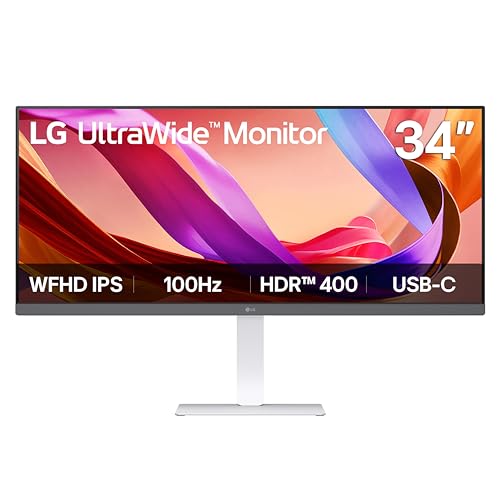
- 34-inch 21:9 ultrawide workspace
- USB-C, DisplayPort, and HDMI connectivity
- Adjustable stand and split-screen app
Best For: Split-screen work, creative tasks, and laptop setups
Dual-Screen Value Pick
Kado 2-Pack 27" Curved Monitors

- Two 27-inch FHD curved monitors
- 98% sRGB color coverage
- Built-in speakers and adaptive sync
Best For: Affordable dual-screen business and gaming setups
Balanced Performance Pick

- 144Hz Full HD display with AMD FreeSync
- Fully adjustable ergonomic stand
- Built-in dual 3W speakers
Best For: Flexible home-office and entertainment setups
Best Heavy-Duty Pick
Kado 24-Inch Curved Monitor 2-Pack

- Includes two 24-inch Full HD monitors
- 1500R curvature for an immersive setup
- 98% sRGB and built-in speakers
Best For: Affordable side-by-side productivity setups
Best Ultrawide Multitasker – Samsung ViewFinity S50GC 34-inch
For shoppers seeking a computer monitor for multitasking, the Samsung ViewFinity S50GC combines a 34-inch 21:9 Ultra-WQHD workspace with picture-by-picture and picture-in-picture modes. Its 3440 x 1440 resolution provides room for multiple applications, while the 100Hz refresh rate and eye-care features suit everyday work and media use.
Best For: Professionals and creators who want a spacious single-screen setup for comparing documents, monitoring content, or running multiple programs.
Pros:
- Ultrawide 3440 x 1440 resolution offers substantial multitasking space.
- PBP and PIP support viewing two sources or monitoring a second input.
- Ambient light adjustment, Eye Saver Mode, and Flicker Free are designed for viewing comfort.
- HDR10, 100Hz refresh rate, and AMD FreeSync support smoother, richer visuals.
Cons:
- Its 34-inch ultrawide footprint requires more desk space than a standard monitor.
- It offers HDMI and DisplayPort connectivity but no listed USB hub.
The S50GC is a strong all-around choice when maximizing workspace on one screen matters most. PBP and PIP make it particularly useful for source comparison, while the curved-free, borderless design remains suitable for a clean dual-monitor arrangement.
Best Budget Large Screen – ViewSonic VX3276-MHD 32-inch
The ViewSonic VX3276-MHD is a practical computer monitor for multitasking when you want a large display without moving to an ultrawide format. Its 32-inch Full HD IPS panel gives everyday documents, browser windows, and media a generous viewing area, with HDMI, DisplayPort, and VGA for broad device compatibility.
Best For: Home offices and general desktop use where a large, straightforward screen and flexible legacy connectivity are priorities.
Pros:
- Large 32-inch display provides more physical workspace than compact monitors.
- IPS technology offers 178-degree viewing angles.
- HDMI, DisplayPort, and VGA inputs support modern and older devices.
- Flicker-Free technology and a Blue Light Filter support longer viewing sessions.
Cons:
- 1920 x 1080 resolution provides less workspace detail than the ultrawide models here.
- 75Hz refresh rate and 8ms response time are geared more toward everyday use than fast gaming.
This ViewSonic makes sense for users who value screen size and compatibility over high resolution. It can handle common office and entertainment tasks comfortably, though people who frequently place several detailed windows side by side may prefer an ultrawide display.
Best High-Refresh Ultrawide – Sceptre C345B-QUT168 34-inch
The Sceptre C345B-QUT168 is a computer monitor for multitasking that pairs a 34-inch curved 21:9 screen with 3440 x 1440 resolution. The ultrawide format creates room for multiple windows, while its up-to-165Hz refresh rate, 1ms MPRT response time, and FreeSync Premium support also make it suitable for fast-moving content and gaming.
Best For: Users who want an expansive productivity display that can also handle gaming and photo or video editing.
Pros:
- 3440 x 1440 resolution delivers a detailed, spacious ultrawide workspace.
- Curved 21:9 design supports an immersive wide-screen layout.
- Up to 165Hz refresh rate and 1ms MPRT support fluid motion.
- 99% sRGB coverage and built-in speakers add versatility for creative and media use.
Cons:
- Its curved 34-inch chassis takes considerable desk space.
- The listed one-year limited warranty is shorter than some competing options.
- Connectivity is centered on HDMI and DisplayPort rather than a broader USB-C setup.
Choose the Sceptre when you want multitasking space without giving up gaming-oriented performance. Its high refresh rate is more than many office workflows require, but it adds useful flexibility for users who move between productivity, editing, and entertainment.
Best Compact Fast Display – Dell SE2426H 24-inch
The Dell SE2426H is a compact computer monitor for multitasking suited to smaller desks and straightforward business setups. Its 23.8-inch Full HD IPS display provides consistent viewing angles, while 144Hz refresh, 1ms MPRT, and AMD FreeSync add smoothness for streaming, motion, and occasional gaming.
Best For: Users who need a space-conscious monitor for business and desktop tasks with smooth motion and modern HDMI connectivity.
Pros:
- Compact 23.8-inch size fits more easily into smaller workspaces.
- IPS technology provides consistent color across 178-degree viewing angles.
- 144Hz refresh rate and 1ms MPRT support fluid motion.
- TÜV Rheinland 3-star eye-comfort certification and thin bezels enhance daily use.
Cons:
- Full HD resolution and the smaller panel provide less multitasking room than ultrawide models.
- Connectivity is limited to two HDMI ports, with no listed DisplayPort or USB hub.
- The supplied specifications list an 8ms response time alongside the 1ms MPRT rating.
The SE2426H is a sensible pick when desk space and smooth performance matter more than fitting many large windows on one screen. It works well as a focused business display or as part of a multi-monitor arrangement.
Balanced Curved Pick – Samsung 27" Essential S3 FHD Monitor
The Samsung Essential S3 is a practical computer monitor for multitasking when you want a compact 27-inch curved screen for work, media, and casual gaming. Its 1080p resolution, 100Hz refresh rate, and eye-comfort features support smooth everyday use.
Best For: Everyday multitasking, business use, multimedia, and casual gaming in a compact setup.
Pros:
- Curved 27-inch screen can provide a more immersive viewing experience.
- 100Hz refresh rate helps reduce motion blur during video, gaming, and creative tasks.
- Blue-light filtering and flicker-free technology support more comfortable long sessions.
- Includes HDMI and D-Sub connectivity, plus adaptive sync support.
Cons:
- FHD resolution provides less workspace than an ultrawide display.
- Only one HDMI port is listed.
- The stand and display size may offer less flexibility than larger productivity monitors.
The Samsung is a well-rounded choice for shoppers who want a curved display without moving to an ultrawide format. It is best suited to straightforward multitasking rather than highly spacious window layouts.
Ultrawide Productivity Pick – LG 34U530A-W UltraWide Monitor
The LG 34U530A-W is a strong computer monitor for multitasking, with a 34-inch 21:9 display that gives multiple windows more horizontal room. Its IPS panel, adjustable stand, USB-C, HDR support, and screen-layout software make it especially suited to organized desk workflows.
Best For: Split-screen productivity, creative work, laptop connectivity, video calls, and streaming.
Pros:
- 34-inch 2560 × 1080 ultrawide format provides substantially more horizontal workspace than a standard 16:9 monitor.
- IPS technology offers a 178-degree viewing angle, while up to 99% sRGB coverage supports vibrant color.
- USB-C, DisplayPort, and HDMI provide flexible connectivity; USB-C supports display output and data transfer.
- Height, tilt, and swivel adjustments help position the display comfortably.
Cons:
- The 2560 × 1080 resolution is less vertically detailed than many higher-resolution productivity displays.
- Only one HDMI port and one USB port are listed.
- The 34-inch design requires more desk width and weighs 19.4 pounds.
For multitaskers who prefer one wide screen over two separate monitors, the LG offers the most workspace in this group. Its USB-C connection and adjustable stand also make it a convenient laptop-centered option.
Dual-Screen Value Pick – Kado 2-Pack 27" Curved Monitors
The Kado 2-pack is a practical computer monitor for multitasking if you want separate screens for documents, browsing, communication, or gaming. Two 27-inch curved FHD monitors create a flexible dual-display setup while keeping the refresh rate and response time suitable for everyday use.
Best For: Budget-conscious dual-monitor setups, business workflows, gaming, and photo or video editing.
Pros:
- Two 27-inch 1920 × 1080 monitors provide separate-screen flexibility for multitasking.
- 1500R curvature is designed to reduce peripheral distortion and support a more comfortable view.
- 98% sRGB coverage supports vibrant visuals for creative and multimedia tasks.
- Built-in speakers, adaptive sync, blue-light filtering, and flicker-free technology add convenience.
Cons:
- 75Hz refresh rate is lower than the 100Hz options in this roundup.
- Each monitor lists only one HDMI port.
- Two displays require more desk space and cable management than a single monitor.
This Kado bundle is appealing when multitasking means keeping two full-size windows visible independently. It offers more layout flexibility than a single 27-inch screen, though the dual-monitor footprint demands adequate desk space.
Balanced Performance Pick – Dell 24 Plus S2425HSM
If you need a computer monitor for multitasking, the Dell 24 Plus combines a compact 23.8-inch Full HD screen with flexible positioning and smooth 144Hz performance. Its matte display, integrated speakers, and ergonomic stand make it practical for everyday work, entertainment, and occasional gaming.
Best For: Home offices and desks where adjustable positioning, built-in audio, and fluid motion are useful.
Pros:
- Height, tilt, pivot, and swivel adjustments support a comfortable workstation.
- 144Hz refresh rate and AMD FreeSync provide smoother motion.
- Built-in dual 3W speakers help reduce desk clutter.
- Four-star TÜV-certified eye-comfort features include reduced blue-light emissions and flicker-free viewing.
Cons:
- Full HD resolution provides less workspace than a higher-resolution monitor.
- The 24-inch screen may feel limited for side-by-side windows compared with larger displays.
The Dell is a well-rounded choice when ergonomic adjustment and everyday versatility matter more than maximum screen area. Its two HDMI ports and built-in speakers also make it easy to integrate into a compact setup.
Best Heavy-Duty Pick – Kado 24-Inch Curved Monitor 2-Pack
For shoppers building a computer monitor for multitasking setup, this Kado two-pack supplies two matching 24-inch curved Full HD displays. The 1500R curvature, matte finish, and dual-screen format are suited to keeping documents, browser windows, and communication tools visible at once.
Best For: Budget-conscious users who want a ready-made dual-monitor workspace for business, gaming, or creative tasks.
Pros:
- Two monitors create substantially more workspace than a single 24-inch display.
- 1500R curved screens are designed to reduce peripheral distortion and viewing discomfort.
- 98% sRGB coverage supports vibrant visuals for multimedia and photo or video work.
- Built-in speakers, blue-light filtering, and flicker-free features add convenience.
Cons:
- Each screen is limited to 75Hz and 1920×1080 resolution.
- Only one HDMI port is listed per monitor.
- The dual-monitor arrangement requires more desk space than a single display.
This Kado bundle is compelling when screen quantity is the priority. It delivers a matched pair for multitasking without requiring separate monitor purchases, though you should plan for adequate desk width and connectivity.
Flexible Workspace Pick – InnoView 23.8-Inch Portable Monitor
The InnoView offers a portable approach to a computer monitor for multitasking, with a 23.8-inch Full HD IPS panel that can move between home offices, meeting rooms, and other workspaces. USB-C and HDMI connectivity make it useful as an additional screen for laptops, desktops, Macs, tablets, and compatible consoles.
Best For: Professionals and gamers who need a large second screen that can be repositioned or connected to multiple device types.
Pros:
- 23.8-inch IPS display provides a generous second-screen area in a portable design.
- 144Hz refresh rate, 2ms response time, and adaptive sync support smooth motion.
- 100% sRGB coverage and HDR are useful for vivid multimedia and creative work.
- USB-C and HDMI support broad device compatibility.
Cons:
- At 250 cd/m² brightness and a 1000:1 contrast ratio, it is more modestly specified than some desktop displays.
- Its large portable form factor may be less convenient for takeout use.
- A single HDMI port limits HDMI-based connections.
The InnoView stands out for flexible placement rather than a traditional fixed desk setup. Its adjustable 180-degree kickstand, VESA support, and dual-input design make it a practical choice for mobile or changing workspaces.
How We Picked the Best Computer Monitor for Multitasking
We focused on the features that matter most when several windows share one workspace: usable screen area, resolution, panel quality, refresh rate, connectivity, and adjustability. Ultrawide models were assessed for horizontal workspace and split-screen flexibility, while standard and dual-monitor options were considered for value and independent window placement.
We also looked for practical extras such as USB-C, picture-by-picture support, built-in speakers, VESA compatibility, HDR, eye-care features, and ergonomic stands. A high refresh rate can make scrolling and cursor movement feel smoother, but it is less important than resolution and viewing comfort for office-focused multitasking.
Quick Comparison
| Type | Best For | Main Advantage | Potential Limitation |
|---|---|---|---|
| 34-inch ultrawide | Heavy multitasking and wide timelines | One continuous workspace | Needs more desk width |
| 32-inch standard display | Large text and simple productivity | Generous physical screen size | Less horizontal space than an ultrawide |
| 24- or 27-inch display | Compact desks and general use | Affordable and easy to position | More window management required |
| Dual-monitor bundle | Separate apps and flexible layouts | Independent screens and angles | Requires extra desk space and cables |
| Portable monitor | Hybrid work and travel | Flexible secondary display | Usually smaller than a desktop monitor |
Key Buying Factors for a Computer Monitor for Multitasking
Screen Size and Layout
A 34-inch ultrawide is often the simplest one-screen solution for side-by-side documents, email, and browsers. A 27-inch display provides a useful middle ground, while 24-inch screens work well for smaller desks or dual-monitor arrangements.
Resolution and Sharpness
Full HD is adequate on 24-inch screens, but it can look less sharp when stretched across larger panels. For a 32-inch or 34-inch monitor, consider WQHD or Ultra-WQHD for clearer text and more usable desktop space. Check that your computer can drive the chosen resolution through its available ports.
Connectivity and Compatibility
HDMI and DisplayPort cover most desktop setups. USB-C is particularly useful for laptops because one cable may carry video and, on some displays, power or USB data. Picture-in-picture and picture-by-picture modes can also help combine two sources on one screen.
Ergonomics and Comfort
Look for height, tilt, swivel, and pivot adjustment when possible. VESA support adds mounting flexibility. Eye-care modes, flicker reduction, and a comfortable brightness level are valuable for long work sessions, regardless of refresh rate.
Who Should Buy Which Computer Monitor for Multitasking?
Choose an ultrawide if you want one uninterrupted workspace for spreadsheets, editing timelines, research, or multiple browser windows. Choose two monitors if you prefer physically separating tasks, frequently switch between computers, or want independent screen angles.
Choose a 24- or 27-inch display for a compact, affordable setup or if gaming and everyday use are equally important. Choose a 32-inch model when large text and a bigger single canvas matter more than maximum pixel density. Choose a portable monitor if your workspace changes often and you need a secondary display for a laptop.