The best wireless drawing tablets give artists more freedom to work without a cable while preserving the pressure control and shortcut access needed for accurate digital creation.
We compared 10 popular models from Wacom, HUION, GAOMON, XENCELABS, and XPPen to help you choose the right balance of size, connectivity, pen performance, controls, software, and price.
Best 10 Wireless Drawing Tablets Picks for 2026
Best Compact Pick

- Battery-free 4,096-level pressure pen
- Bluetooth or USB-A connectivity
- Compact 6 x 3.7-inch active area
Best For: Students and creators needing a portable, software-friendly tablet
Best Medium Canvas

- Spacious 10 x 6.25-inch work area
- Up to 24 hours of wireless use
- Supports computer and mobile connections
Best For: Artists wanting a minimalist, spacious, mobile-compatible tablet
Best Control Layout

- Dial plus eight customizable keys
- 16,384-level battery-free pen
- Up to 18 hours of wireless battery life
Best For: Designers who want tactile shortcuts and precise pen control
Best Workflow Bundle

- 40 customizable quick-key functions
- Two battery-free pens included
- Windows, Mac, and Linux support
Best For: Professionals needing extensive controls and a flexible pen setup
Compact Wireless Pick

- Bluetooth with Windows, Mac, and ChromeOS compatibility
- 4096 pressure levels and battery-free pen
- Compact design with four customizable ExpressKeys
Best For: Beginners, teachers, and small desks
Flexible Connectivity Pick
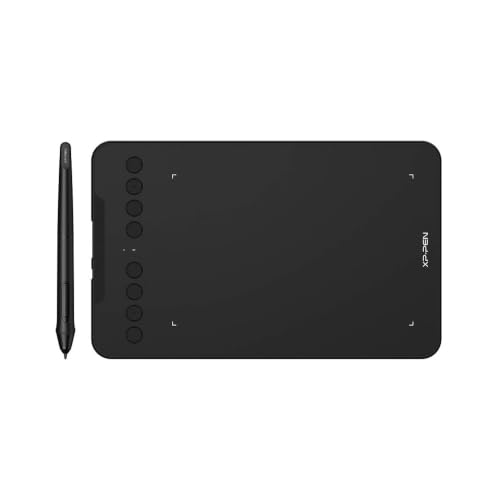
- Bluetooth 5.0 plus wired USB connections
- 16,384 pressure levels with 60-degree tilt support
- Eight customizable shortcut keys and broad OS support
Best For: Multi-device creators and online educators
Professional Workflow Pick

- Pro Pen 3 with 8192 pressure levels and tilt support
- Ten ExpressKeys plus two mechanical dials
- Bluetooth or USB connectivity for Mac and PC
Best For: Professional animation, design, photo, video, and 3D work
Best Wireless Drawing Tablet for Shortcut-Heavy Workflows

- Bluetooth 5.0 and battery-free X3 stylus
- 8 x 5-inch active area with 8 shortcut keys
- Compatible with major operating systems and art apps
Best For: Creators wanting a roomy, versatile wireless tablet
Best Wireless Drawing Tablet for Familiar Pen-on-Paper Control

- Bluetooth or USB-A connectivity
- Battery-free pen with 4,096 pressure levels
- Includes access to software and online training
Best For: Students and creators seeking simple, dependable controls
Best Compact Wireless Drawing Tablet for Mobile Mapping
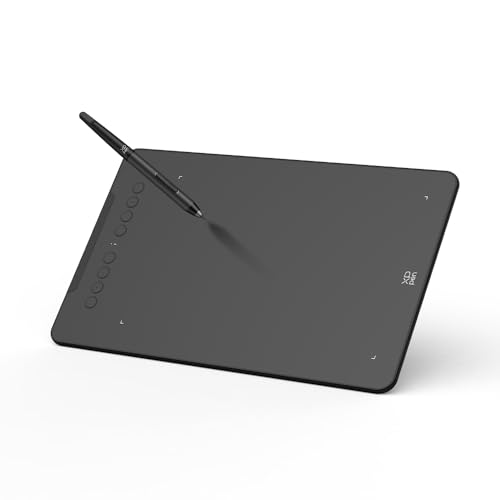
- Bluetooth 5.0 with up to 13 hours of stated battery life
- Android mapping adjustment helps prevent image stretching
- Compact design with 8 shortcut keys and tilt support
Best For: Mobile-focused artists and compact-workspace users
Best Compact Pick – Wacom Intuos Small Bluetooth
The Wacom Intuos Small is a practical choice if you want one of the most compact wireless drawing tablets for digital art, photo editing, writing, and online education. Its battery-free pen, Bluetooth connectivity, and four ExpressKeys make it easy to use at a desk or away from one.
Best For: Students, teachers, and creators who want a compact tablet with dependable software compatibility.
Pros:
- Battery-free pen with 4,096 pressure levels for controlled strokes.
- Bluetooth and USB-A connectivity provide flexible setup options.
- Four ExpressKeys offer convenient shortcuts.
- Works with Mac, Windows, and Chromebook, with software and training included.
Cons:
- Its 6 x 3.7-inch active area is smaller than the other medium-size options here.
- It has fewer pressure levels than several competing models in this roundup.
The Intuos Small prioritizes portability and straightforward operation. Choose it when a compact footprint and broad compatibility matter more than a large drawing surface or extensive hardware controls.
Best Medium Canvas – HUION Inspiroy Frego Medium
The HUION Inspiroy Frego Medium gives wireless drawing tablets shoppers a broad 10 x 6.25-inch work area without physical shortcut keys. Bluetooth, a rechargeable battery rated for up to 24 hours, and mobile-device support make it a flexible option for drawing on multiple platforms.
Best For: Artists who want a spacious, minimalist tablet that can connect to computers, Android devices, iPhones, and iPads through supported apps.
Pros:
- Large 10 x 6.25-inch working area for comfortable drawing.
- Bluetooth and USB-C connectivity, with up to 24 hours of battery life.
- Battery-free stylus with 8,192 pressure levels, tilt support, and two side keys.
- Symmetrical design, wrist rest, and built-in pen holder support portable use.
Cons:
- The minimalist design omits physical shortcut keys on the tablet.
- Bluetooth compatibility is limited to specified operating-system versions.
With its generous canvas and ergonomic details, the Frego Medium is suited to longer drawing sessions. It is especially appealing if you prefer screen space and mobile flexibility over built-in tablet controls.
Best Control Layout – GAOMON WH851 Bluetooth
The GAOMON WH851 stands out among wireless drawing tablets for its combination of a central dial and eight customizable keys. It also provides Bluetooth 5.0, an 8 x 5-inch active area, and a battery-free pen with 16,384 pressure levels for detailed drawing, animation, annotation, and design work.
Best For: Artists and designers who rely on tactile shortcuts for zooming, scrolling, brush control, and other recurring commands.
Pros:
- Central dial and eight programmable keys support efficient workflow control.
- Battery-free pen offers 16,384 pressure levels and 60-degree tilt support.
- Bluetooth 5.0 and USB Type-C wired connections are available.
- Battery provides up to 18 hours of operation, and the aspect ratio can be adjusted.
Cons:
- The 8 x 5-inch active area is smaller than the HUION and Xencelabs working surfaces.
- Its listed operating-system compatibility is more limited for some Bluetooth setups.
The WH851 is a strong fit when hardware controls are central to your workflow. Its dial, shortcut keys, tilt support, and high pressure sensitivity make it more control-oriented than minimalist alternatives.
Best Workflow Bundle – XENCELABS Medium Pen Tablet
The XENCELABS Medium bundle is a premium-feeling option for wireless drawing tablets users who want extensive customization. It combines two battery-free pens, 40 programmable quick-key functions across five sets, an OLED display, a textured surface, and compatibility with Windows, Mac, and Linux.
Best For: Serious digital artists and professionals who need configurable controls, multiple pens, and broad creative-software compatibility.
Pros:
- Offers 40 customizable quick-key functions with OLED assignment display.
- Includes two battery-free pens with different diameters and button layouts.
- Textured, non-slip surface and gentle slope support a pen-on-paper feel.
- Supports Windows, Mac, and Linux, with up to 30 hours of quick-key battery use.
Cons:
- At 2 kg, it is considerably heavier than the other tablets listed here.
- The 10.33 x 5.8-inch active area is not the largest despite its medium designation.
The Xencelabs bundle is designed around customization and sustained creative workflows rather than minimal portability. Its extensive shortcut system and included accessories make it a compelling choice for users who will take advantage of advanced controls.
Compact Wireless Pick – Wacom Intuos CTL4100WLK0
The renewed Wacom Intuos CTL4100WLK0 is a compact option for shoppers comparing wireless drawing tablets for sketching, painting, and photo editing. Bluetooth connectivity, a battery-free pen, and a small footprint make it practical for limited desk space.
Best For: Beginners, teachers, and creators who want a compact wireless tablet with customizable shortcuts.
Pros:
- Bluetooth connectivity works with compatible Mac, Windows, and ChromeOS devices.
- 4096 pressure levels provide control for drawing, painting, and editing.
- Four customizable ExpressKeys make common shortcuts easy to access.
- Supports left- and right-handed setup and includes original accessories.
Cons:
- The renewed condition may not suit shoppers seeking a factory-new product.
- Its 6.0 x 3.7-inch active area is smaller than the other tablets listed here.
Choose this Wacom when desk space and straightforward wireless operation matter more than a large active area or advanced control features.
Flexible Connectivity Pick – XP-Pen Deco mini7W
The XP-Pen Deco mini7W is a versatile choice among wireless drawing tablets, offering Bluetooth 5.0 alongside wired connections. Its battery-free, tilt-supporting pen and broad device compatibility make it useful for drawing, online teaching, editing, and remote work.
Best For: Creators and educators who need wireless or wired flexibility across computers, Android devices, and compatible mobile hardware.
Pros:
- Bluetooth 5.0 and included USB accessories support wired and wireless use.
- Battery-free pen offers 16,384 pressure levels and 60-degree tilt support.
- Eight customizable shortcut keys can be tailored to individual workflows.
- Compatible with Windows, Mac, Android, ChromeOS, and Linux systems listed by the manufacturer.
Cons:
- The supplied notes do not specify the full active-area dimensions beyond a 7-inch listing.
- Its feature set may be more than needed for basic, occasional sketching.
This is a strong middle-ground option if you want high reported pen sensitivity, shortcut controls, and connection choices without limiting yourself to one device type.
Professional Workflow Pick – Wacom Intuos Pro Medium
The Wacom Intuos Pro Medium is the premium option in this wireless drawing tablets roundup, built for professional animation, design, drawing, photo, video, and 3D workflows. Its Pro Pen 3, customizable controls, and Bluetooth connectivity are aimed at creators who want precision and productivity features.
Best For: Professional artists, animators, designers, and other Mac or PC users who rely on programmable controls.
Pros:
- Pro Pen 3 provides 8192 pressure levels, tilt support, and lag-free tracking according to the supplied notes.
- Ten ExpressKeys and two mechanical dials offer extensive shortcut control.
- Medium format provides an 8.7 x 5.8-inch active area while maintaining a relatively compact footprint.
- Connects by Bluetooth or USB and includes adjustable pen grip and button components.
Cons:
- It is designed for professional workflows and may be excessive for casual users.
- Compatibility is listed for Windows 10 or later and macOS 13 or later, limiting older systems.
For demanding creative work, this model stands out for its pen customization, large shortcut system, and dial-based workflow controls, though its professional orientation may not justify the added complexity for beginners.
Best Wireless Drawing Tablet for Shortcut-Heavy Workflows – XP-Pen Deco MW
The XP-Pen Deco MW is a flexible choice among wireless drawing tablets, pairing Bluetooth 5.0 with a battery-free stylus and a generous 8 x 5-inch active area. Its broad operating-system and software compatibility makes it suitable for illustration, photo editing, online teaching, and general creative work.
Best For: Creators who want a roomy drawing surface, customizable shortcuts, and compatibility across computers, Android devices, ChromeOS, and Linux.
Pros:
- Bluetooth 5.0 supports cable-free drawing and a tidier workspace.
- Battery-free X3 stylus offers 8,192 pressure levels and 60-degree tilt support.
- Eight customizable shortcut keys can speed up common workflows.
- Works with Windows, macOS, Android, ChromeOS, Linux, and major art software.
Cons:
- It is a pen tablet rather than a built-in display, so you draw while viewing a separate screen.
- Its larger footprint may be less convenient for highly portable setups.
With its combination of wireless connectivity, a larger active area, and extensive compatibility, the Deco MW is a well-rounded option for users who prioritize workspace flexibility and quick-access controls.
Best Wireless Drawing Tablet for Familiar Pen-on-Paper Control – Wacom Intuos Medium
The Wacom Intuos Medium is a straightforward option among wireless drawing tablets, offering Bluetooth connectivity, a battery-free pressure-sensitive pen, and an 8.50 x 5.31-inch active area. It is designed for drawing, painting, design, photo and video editing, and document markup.
Best For: Students, teachers, and creators who want a recognized brand, simple Bluetooth or USB connectivity, and access to included software and training.
Pros:
- Bluetooth lets you work wirelessly, while USB-A provides a direct connection.
- Battery-free Wacom EMR pen is designed to provide pen-on-paper control.
- Works with creative software for drawing, editing, design, and document markup.
- Registration includes access to creative software and Wacom online training.
Cons:
- The pen provides 4,096 pressure levels, fewer than some competing models in this roundup.
- Only four ExpressKeys are included for shortcuts.
- Supplied operating-system details specifically list Windows 7 or later and OS X 10.11 or later.
The Intuos Medium emphasizes dependable, uncomplicated operation rather than a long list of controls. Its wireless flexibility and included learning resources make it a practical starting point for students and everyday creative work.
Best Compact Wireless Drawing Tablet for Mobile Mapping – XP-Pen Deco mini7W V2
The XP-Pen Deco mini7W V2 is a compact wireless drawing tablet built for desktop and mobile creation. Bluetooth 5.0, a battery-free stylus, adjustable Android mapping, and eight shortcut keys make it useful for illustration, note-taking, photo editing, and online teaching.
Best For: Mobile-focused artists and users who want a small tablet with Android screen-ratio adjustment and both wireless and wired options.
Pros:
- Bluetooth 5.0 provides wireless connectivity, with up to 13 hours of stated continuous work per charge.
- App-based active-area adjustment is designed to reduce distortion on Android devices.
- Battery-free stylus supports 60-degree tilt and up to 16,384 pressure levels according to the product description.
- Eight customizable keys and broad Windows, macOS, Android, ChromeOS, and Linux compatibility support varied workflows.
Cons:
- Its approximately 7 x 4.37-inch format offers less drawing space than larger medium tablets.
- iOS support is limited to ibis Paint according to the supplied notes.
- The listed specifications contain a pressure-sensitivity discrepancy, stating both 16,384 and 8,192 levels.
The Deco mini7W V2 stands out for portability and mobile mapping rather than maximum workspace. It is a strong fit for creators who regularly switch between a computer and Android device and value a compact setup.
How We Picked the Best Wireless Drawing Tablets
We focused on the features that most affect everyday drawing and editing: wireless connection quality, active drawing area, pressure sensitivity, pen design, shortcut controls, compatibility, portability, and overall value. The selection includes compact tablets for travel and small desks, medium models for more expressive work, and premium options for serious artists.
We also considered whether each tablet uses a battery-free stylus, supports Bluetooth or a wireless receiver, includes useful software, and offers controls that can reduce reliance on a keyboard. Specifications can vary by region and retailer, so confirm the current contents and compatibility before ordering.
Quick Comparison
| Best For | What to Prioritize | Recommended Type |
|---|---|---|
| Beginners and students | Simple setup, comfortable pen, reasonable price | Compact Wacom, XPPen, or HUION model |
| Illustration and design | Larger active area, accurate tracking, customizable keys | Medium wireless tablet |
| Photo editing | Shortcut buttons, reliable pressure control, software support | Tablet with dial or programmable keys |
| Travel and small desks | Lightweight body, Bluetooth, compact footprint | Small 7-inch-class tablet |
| Professional workflows | Premium pen, durable build, expanded controls | Wacom Intuos Pro or XENCELABS-class model |
Key Buying Factors for Wireless Drawing Tablets
Active Area and Portability
A larger active area gives your hand more room for broad strokes and detailed illustrations, but it also takes up more desk space. Small tablets are easier to carry and can work well with laptops, note-taking, and basic edits. Medium models are often the best compromise for drawing.
Wireless Connection and Battery Life
Check whether wireless operation uses Bluetooth, a proprietary receiver, or both. Bluetooth is convenient for compatible computers, while a receiver may offer simpler pairing on some systems. Also confirm how the tablet charges and whether it can continue working over USB if the battery runs low.
Pen Performance
Look for a battery-free stylus if you want minimal maintenance. Pressure sensitivity matters for line variation, but tracking consistency, tilt support, nib feel, and comfortable balance can matter just as much. Higher sensitivity numbers do not automatically guarantee better artwork.
Controls, Compatibility, and Software
Shortcut keys, dials, and customizable buttons can speed up zooming, undoing, brush sizing, and canvas navigation. Verify support for your operating system and preferred apps, including Photoshop, Clip Studio Paint, Krita, and other creative software. Included software may be trial-based or limited to selected platforms.
Who Should Buy Which Wireless Drawing Tablets?
Choose a compact model if you are new to digital art, have limited desk space, or frequently work with a laptop. A medium tablet is the stronger choice for illustrators, designers, and anyone who wants more natural arm movement. Pick a model with a dial or many programmable keys if you edit photos, animate, or use repetitive commands throughout the day. Premium tablets make the most sense for frequent users who value refined pen control, durable construction, and a more customizable workflow.