The best drawing tablet with shortcut keys can reduce menu hunting and make common actions—such as undo, zoom, brush sizing, and canvas rotation—feel much faster.
We’ve compared 10 options ranging from compact pen tablets and wireless keypads to full pen displays, focusing on shortcut controls, pen performance, compatibility, and everyday usability.
Best 10 Drawing Tablet with Shortcut Keys Picks for 2026
Best Shortcut-Key Value

- 12 customizable keys and a programmable quick dial
- Large 10 x 6-inch active area
- Battery-free 8192-level pen with tilt support after update
Best For: Artists wanting a large control-rich tablet
Simple Starter Pick

- Four ExpressKeys for quick shortcuts
- Battery-free EMR pen with natural control
- Compact design with Chromebook support
Best For: Students, teachers, and beginner creators
Best Shortcut Add-On

- 18 programmable keys plus a configurable dial
- Wireless Bluetooth 5.0 connection
- Works with other brands' graphics tablets
Best For: Creators expanding an existing tablet setup
Best Screened Option

- 15.4-inch laminated pen display with minimal parallax
- Eight hotkeys and two scroll wheels
- 16K stylus with broad OS compatibility
Best For: Professionals wanting direct on-screen drawing
Best Shortcut Keyboard
AOIKTYE Wireless Procreate Keyboard
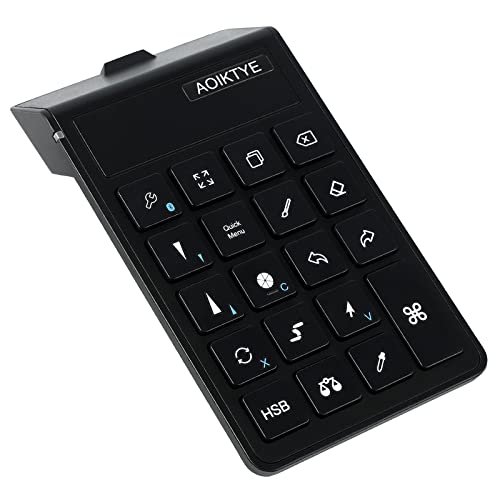
- 20+ shortcuts for Procreate and other creative apps
- Bluetooth connectivity with up to 84 hours of use
- Compact rechargeable design with updated key layout
Best For: iPad artists seeking dedicated Procreate controls
Best Overall
VEIKK VK850 8×5-Inch Drawing Tablet

- 8×5-inch active area with 16,384 pressure levels
- 10 programmable shortcut keys plus quick dial
- Battery-free pen and Windows, macOS, Linux, and Android support
Best For: Artists wanting a portable tablet with extensive controls
Best Large Work Surface
VEIKK VK1060 V2 Drawing Tablet

- 10×6-inch active area for broad, comfortable strokes
- Eight customizable shortcut keys and ±60° tilt support
- Includes battery-free pen, 28 nibs, glove, and OTG connectors
Best For: Desktop artists who want maximum drawing space
Best Large-Surface Pick

- Large 13.8-by-8.6-inch active area
- 12 programmable express keys
- Wireless operation with up to 25-hour battery life
Best For: Artists who want a spacious wireless tablet with extensive shortcut controls
Best Screen Tablet for Beginners

- 11.6-inch Full HD IPS display
- Six built-in shortcut keys
- Battery-free, tilt-supporting pen
Best For: Beginners and students who want an on-screen drawing experience
Best Shortcut-Key Value – VEIKK A15Pro
The VEIKK A15Pro is a strong choice if you want a drawing tablet with shortcut keys and a generous working area. Its 10 x 6-inch surface combines 12 customizable express keys with a programmable quick dial for common canvas, brush, and scrolling adjustments.
Best For: Artists, students, and remote workers who want lots of controls, a large active area, and broad operating-system compatibility.
Pros:
- 12 programmable shortcut keys plus a customizable quick dial
- Large 10 x 6-inch active area with a slim, portable design
- Battery-free 8192-level pen with tilt support after firmware update
- Works with Mac, Windows, Linux, Android, and major creative software
Cons:
- Tilt support on compatible setups requires a firmware update
- It is a pen tablet rather than a built-in-screen display
Choose the A15Pro when workflow controls matter as much as drawing space. The included spare nibs, glove, pen holder, one-year warranty, and lifetime technical support add practical value.
Simple Starter Pick – Wacom Intuos Small
The Wacom Intuos Small is a compact drawing tablet with shortcut keys for creators who prefer a straightforward setup. Its four ExpressKeys, battery-free pen, and small footprint make it suitable for drawing, photo editing, design work, and document markup.
Best For: Students, teachers, beginners, and creators who value a compact tablet with dependable pen control and included software access.
Pros:
- Four ExpressKeys provide convenient shortcut access
- Battery-free EMR pen with a pen-on-paper feel
- Compact 6 x 3.7-inch active area and lightweight body
- Works with Windows, Mac, Android, and Chromebook
Cons:
- Smaller active area than the VEIKK and XP-Pen options here
- Pen sensitivity is 4096 levels, below some competing models
- Only four shortcut keys are provided
The Intuos Small is a sensible entry point when portability and ease of use outweigh the need for extensive controls. Wacom also includes access to creative software and online training after registration.
Best Shortcut Add-On – HUION Keydial Mini
The HUION Keydial Mini is not a drawing tablet itself, but it is a useful companion for anyone who wants more shortcut keys alongside an existing tablet. This Bluetooth keypad adds 18 programmable buttons and a multi-function dial for brush sizing, timeline navigation, zooming, and other software controls.
Best For: Digital artists, editors, and tablet users who want a wireless shortcut controller that works with different brands of graphics tablets.
Pros:
- 18 programmable keys and a dial with up to three assigned functions
- Bluetooth 5.0 wireless connection with up to 10 meters of range
- Approximately 70-hour battery life and ambidextrous one-handed design
- Compatible with Mac, Windows, and many creative applications
Cons:
- Requires a separate drawing tablet or other compatible device
- Shortcut customization requires the Huion driver and software support
- It does not provide a drawing surface or stylus
Consider the Keydial Mini when your current tablet works well but lacks enough controls. Its setting-preview function can also make extensive custom mappings easier to identify.
Best Screened Option – XPPen Artist 16 3rd
The XPPen Artist 16 3rd is a pen display for shoppers who want a drawing tablet with shortcut keys and an integrated screen. Its 15.4-inch fully laminated display, eight customizable hotkeys, two scroll wheels, and 16K pressure stylus are designed for direct, detailed work.
Best For: Illustrators, animators, designers, and 3D creators who prefer drawing directly on a large screen with dedicated workflow controls.
Pros:
- 15.4-inch FHD display with anti-glare etched glass and low parallax
- Eight customizable shortcut keys and two independent scroll wheels
- 16,384 pressure levels with a low 2g initial activation force
- Includes a foldable stand and supports Mac, Windows, Android, ChromeOS, and Linux
Cons:
- As a pen display, it requires a compatible computer or device setup
- Its larger screen footprint may be less portable than small pen tablets
- Some connections may require the included 3-in-1 cable rather than one USB-C cable
The Artist 16 3rd is the most immersive option in this group, especially for users who want direct on-screen drawing and strong color coverage. The stand and magnetic stylus help make longer creative sessions more comfortable and organized.
Best Shortcut Keyboard – AOIKTYE Wireless Procreate Keyboard
If you already draw on an iPad and want a drawing tablet with shortcut keys, this compact AOIKTYE wireless keyboard adds quick access to common Procreate commands without taking up much desk space. It offers more than 20 shortcut functions, including undo, color sampling, brush-size control, and layer removal.
Best For: iPad artists who primarily use Procreate and want a dedicated wireless shortcut controller.
Pros:
- Supports more than 20 functions for Procreate and several other creative applications.
- Bluetooth connection works up to 10 meters and the rechargeable battery provides up to 84 hours of use.
- Compact, lightweight design with an updated key layout and adjustable future customization through OTA updates.
Cons:
- It is a shortcut keyboard rather than a pressure-sensitive drawing tablet.
- Its strongest software support is centered on Procreate, so compatibility may vary across other programs.
This is a useful workflow accessory for artists who already have a compatible tablet and want faster command access. Choose a full pen tablet instead if you need pressure-sensitive drawing hardware and built-in programmable keys.
Best Overall – VEIKK VK850 8×5-Inch Drawing Tablet
The VEIKK VK850 is a strong choice if you want a drawing tablet with shortcut keys and a larger working area without a built-in display. Its 8×5-inch active surface, battery-free stylus, programmable keys, and quick dial support both drawing precision and efficient navigation.
Best For: Beginners and mobile-minded artists who want programmable controls, tilt support, and a portable pen tablet.
Pros:
- Eight-inch by five-inch active area provides room for broad strokes and detailed work.
- Includes 16,384 pressure levels, ±60° tilt support, and 290 PPS reporting speed.
- Ten customizable shortcut keys and a quick dial reduce the need to reach for a keyboard.
- Works with Windows, macOS, Linux, and Android, and includes a battery-free pen, nibs, glove, and USB-C adapter.
Cons:
- It requires connection to a compatible computer or Android device rather than functioning as a standalone display tablet.
- The supplied notes do not specify iPad compatibility.
With its combination of a generous active area, high pressure sensitivity, and dedicated controls, the VK850 is well suited to artists building an efficient desktop or portable setup. Its quick dial is particularly useful for brush-size adjustments and canvas navigation.
Best Large Work Surface – VEIKK VK1060 V2 Drawing Tablet
For artists who prefer a broad drawing surface, the VEIKK VK1060 V2 combines a 10×6-inch active area with eight customizable shortcut keys. This drawing tablet with shortcut keys is designed for computer-based illustration, design, animation, and online teaching, with a battery-free pen for pressure-sensitive strokes.
Best For: Desktop artists who prioritize a large working area and straightforward programmable controls.
Pros:
- Large 10×6-inch papery-texture active area supports expansive drawing movements.
- Eight customizable shortcut keys and blind-spot reduction design support an ergonomic workflow.
- Battery-free pen offers 8,192 pressure levels and ±60° tilt support.
- Includes 28 replacement nibs, OTG connectors, an artist glove, and one year of hardware coverage.
Cons:
- Not compatible with iPhone or iPad.
- USB connectivity means it is less convenient for users seeking a wireless setup.
- It has fewer shortcut keys than the VK850.
The VK1060 V2 is a practical fit when surface area matters more than maximum shortcut count. It offers the core pen features needed for illustration and design, but iPad users should choose a different model.
Best Large-Surface Pick – HUION WH1409 Wireless
HUION WH1409 Wireless Graphic Drawing Tablet 8192 Pen Pressure Pen Tablet with 12 Press Keys
Check Price On AmazonIf you want a drawing tablet with shortcut keys and plenty of room for broad strokes, the HUION WH1409 combines a 13.8-by-8.6-inch active area with 12 programmable express keys. Its wireless connection can reach up to 10 meters, making it a flexible choice for desktop creative work.
Best For: Artists, designers, animators, and 3D modelers who want a spacious, wireless tablet with many customizable shortcuts.
Pros:
- Large 13.8-by-8.6-inch working surface
- 12 programmable keys support left- or right-handed use
- 8192 pressure levels and 5080 LPI resolution
- Wireless battery lasts up to 25 hours when continuously active
Cons:
- Wireless charging takes approximately 5–7 hours
- Designed for Windows and macOS rather than mobile operating systems
The WH1409 is especially appealing when workspace and shortcut access matter more than portability. Its large surface, wireless operation, and extensive key layout make it a practical option for longer creative sessions.
Best Standalone Shortcut Pad – XENCELABS Quick Keys
The XENCELABS Quick Keys is a dedicated shortcut controller for creators who want more accessible commands alongside a drawing tablet with shortcut keys. It provides OLED-labeled shortcut sets, a rotary dial, and wireless or USB connectivity, but it does not include a drawing surface or display.
Best For: Digital artists, photographers, video editors, and other creators who want a separate customizable control pad.
Pros:
- Eight keys across five sets provide up to 40 programmable commands
- OLED display helps identify active shortcuts
- Rotary dial supports zoom, canvas rotation, brush size, and timeline control
- Works with Windows, macOS, and Linux
Cons:
- It is a shortcut pad, not a drawing tablet
- Not supported on iOS or Android
- Does not support macro commands, scripts, or third-party plugin integration
This is a useful add-on for a tablet setup rather than a replacement for a pen tablet. Its labeled shortcut sets and dial are well suited to workflows that span drawing, photo, video, and audio applications.
Best Screen Tablet for Beginners – VEIKK VK1200 Drawing Display
For shoppers seeking a drawing tablet with shortcut keys and a built-in display, the VEIKK VK1200 pairs an 11.6-inch 1920-by-1080 screen with six dedicated shortcut buttons. Its battery-free, tilt-supporting pen and included accessories make it approachable for artists, students, and beginners.
Best For: Beginners, students, and artists who prefer drawing directly on a screen with essential shortcut controls.
Pros:
- 11.6-inch Full HD IPS drawing display
- Six shortcut keys provide quick access to common tools
- Battery-free pen offers 8192 pressure levels and tilt support
- Includes two pens, 28 replacement nibs, a holder, and an artist glove
Cons:
- Six shortcut keys offer fewer controls than larger shortcut layouts
- Requires HDMI and USB connectivity
- The supplied notes specify a one-year warranty
The VK1200 offers the direct-on-screen experience many new digital artists prefer without requiring a separate display. Its six keys cover common actions, while the included pens and nibs add useful flexibility for getting started.
How We Picked the Best Drawing Tablet with Shortcut Keys
We selected products across several common digital-art setups, including screenless tablets, pen displays, dedicated shortcut keypads, and wireless controllers. Our comparison emphasizes the number and flexibility of programmable controls, pen responsiveness, working area, connectivity, compatibility, and portability. We also considered whether each option suits a beginner, an experienced illustrator, a photo editor, or an artist who prefers working directly on the screen.
Shortcut counts can be misleading, so we looked beyond the number printed on the box. A smaller set of well-placed keys or a useful dial may be more practical than numerous controls that are difficult to reach or configure.
Quick Comparison
| Type | Best For | Main Advantage | Potential Trade-Off |
|---|---|---|---|
| Screenless tablet | Drawing, editing, and general computer use | Lower cost and easy desk setup | Requires hand-eye coordination |
| Pen display | Illustrators and visual artists | Draw directly on the image | Higher cost and more desk space |
| Shortcut keypad | Existing tablet users | Adds customizable controls to a current setup | Does not replace a pressure-sensitive tablet |
| Wireless controller | Mobile or flexible workflows | Fewer cables and convenient positioning | Requires charging or battery management |
Key Buying Factors for a Drawing Tablet with Shortcut Keys
Shortcut Layout and Customization
Check whether the keys are programmable within your preferred applications, such as Photoshop, Illustrator, Clip Studio Paint, Krita, or Procreate. Dials, scroll wheels, and touch rings can be particularly useful for brush size, zoom, rotation, and timeline control.
Pen and Pressure Performance
Look for a battery-free stylus if you want minimal maintenance. Pressure sensitivity and tilt support can improve line variation and shading, but software settings and driver quality matter just as much as the advertised pressure level.
Size, Surface, and Display Type
A compact tablet is easier to carry, while a larger active area may feel more natural for sweeping strokes. Pen displays provide direct visual feedback, but they typically cost more and require a suitable viewing angle, stand, and additional cables.
Compatibility and Connectivity
Confirm support for your operating system and creative software before buying. Wired USB connections are usually simple and reliable; Bluetooth or wireless models offer greater freedom but may introduce pairing and charging considerations.
Who Should Buy Which Drawing Tablet with Shortcut Keys?
Choose a compact screenless model if you want an affordable, space-saving Drawing Tablet with Shortcut Keys for learning, editing, or occasional illustration. A larger tablet is better for artists who use broad arm movements or work on high-resolution projects. Choose a pen display if drawing directly on the artwork is your top priority and your budget accommodates a more involved setup.
If you already own a capable tablet, a dedicated keypad such as a programmable dial controller can add fast commands without replacing your current hardware. Wireless shortcut keyboards are especially useful for iPad-based workflows or artists who prefer to position controls beside the tablet. Before deciding, prioritize the controls you will use most, then verify application support, desk space, and connection requirements.