A docking station with DisplayPort can turn a laptop into a more capable desktop setup, adding external monitors, wired networking, USB accessories, and charging through one connection. The right model depends on your laptop’s ports, operating system, display requirements, and desk setup.
We selected 10 options covering everyday office work, dual- and triple-monitor productivity, Mac and Windows compatibility, high-resolution displays, and different connectivity needs. Use the guide below to narrow the list before choosing the dock that best matches your hardware.
Best 10 Docking Station with Displayport Picks for 2026
Best for Business IT
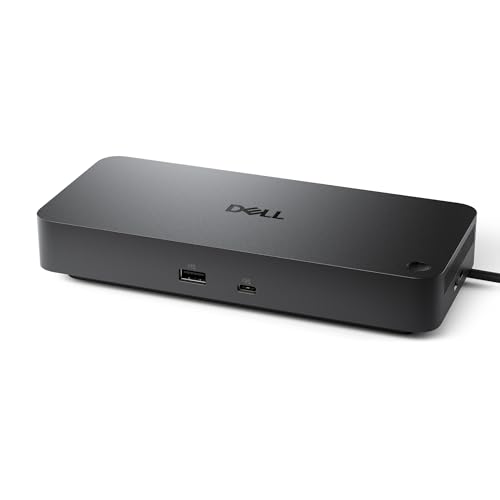
- Up to four high-resolution displays
- Up to 100W power delivery
- Three-year advanced-exchange warranty
Best For: Managed office workstations and multi-monitor business setups
Best for Triple-Monitor Flexibility

- Supports up to three external displays
- Two DisplayPort outputs and 100W charging
- Six 10Gbps USB ports
Best For: Multi-monitor home offices and mixed USB-C laptop setups
Best for Dual 4K Productivity

- Dual 4K display support at 60Hz
- DisplayPort and HDMI outputs
- Six USB 3.0 ports plus Gigabit Ethernet
Best For: Office users building a two-monitor productivity setup
Best All-Around Expansion

- 4K HDMI and DisplayPort outputs
- 10Gbps USB-C and USB-A data ports
- 85W pass-through charging
Best For: Broad connectivity on compatible Windows, ChromeOS, and macOS laptops
Best for Windows Triple Displays
WAVLINK 12-in-1 DisplayPort Dock

- Dual DisplayPort with up to dual 4K@60Hz
- 2.5Gbps Ethernet and 10Gbps USB ports
- Up to 85W laptop charging
Best For: Windows multi-monitor workstations and high-speed wired networking
Best Budget Multi-Display Adapter

- Dual DisplayPort, HDMI, and VGA outputs
- Up to 4K@60Hz via DP and HDMI
- 100W USB-C PD charging input
Best For: Basic multi-monitor setups on compatible Dell, HP, and Lenovo laptops
Best for Peripheral Variety
WAVLINK Triple-Display DP Dock

- Dual DP plus HDMI for flexible monitor setups
- 12 ports include SD/TF, Ethernet, and audio
- Up to 85W laptop charging output
Best For: Windows users with many peripherals
Best Budget Video-Port Mix

- DP, dual HDMI, and VGA outputs
- Dual or triple display support up to 4K
- 100W input and up to 87W laptop output
Best For: Basic office setups with mixed monitor inputs
Best for Business IT – Dell Pro WD25 Docking Station
The Dell Pro WD25 is a business-focused docking station with DisplayPort, HDMI, Ethernet, USB connectivity, and up to 100W power delivery. It is designed for Windows, Ubuntu, Red Hat Enterprise Linux, and ChromeOS environments, with native support for up to four high-resolution displays.
Best For: Office workstations, managed IT deployments, and users who need broad compatibility with multi-monitor support.
Pros:
- Supports up to four high-resolution displays.
- Provides up to 100W of power for compatible laptops.
- Includes DisplayPort, HDMI, USB, Ethernet, and six USB ports.
- Includes a three-year limited hardware warranty with advanced exchange.
Cons:
- Its strongest management features are primarily useful in business environments.
- Maximum charging and display capabilities depend on the host computer and setup.
The WD25 is a practical docking station with DisplayPort for organizations that value manageability, compatibility, and a long warranty. Its flexible USB-C cable routing and recycled-material construction are useful finishing touches for a permanent desk setup.
Best for Triple-Monitor Flexibility – WAVLINK DisplayLink Dock
The WAVLINK DisplayLink dock is a versatile docking station with DisplayPort for connecting up to three external monitors. It combines 4K and 2K display outputs with 100W power delivery, six 10Gbps USB ports, Gigabit Ethernet, and compatibility across many USB-C, USB4, and Thunderbolt laptops.
Best For: Home offices, mixed-device workspaces, and multitasking setups that need three displays from one dock.
Pros:
- Supports up to 4K + 2K + 2K across three displays.
- Offers two DisplayPort outputs alongside HDMI connectivity.
- Includes six 10Gbps USB ports and Gigabit Ethernet.
- Supplies 100W charging with a 130W power adapter included.
Cons:
- MacBooks with M1 through M5 chips require a DisplayLink driver.
- The laptop must support video output over USB-C.
- It is not recommended for gaming or HDCP-protected 4K streaming.
For users prioritizing screen real estate, this is a capable docking station with DisplayPort and broad laptop compatibility. DisplayLink requirements on newer Macs and the stated media limitations should be checked before purchase.
Best for Dual 4K Productivity – Plugable UD-6950Z Dock
The Plugable UD-6950Z is a dual-monitor docking station with DisplayPort and HDMI outputs, six USB 3.0 ports, Gigabit Ethernet, and an audio jack. DisplayLink technology supports two 4K monitors at 60Hz, making it suited to office productivity rather than gaming or protected streaming.
Best For: Windows, macOS, and ChromeOS users who want two 4K monitors and expanded USB connectivity.
Pros:
- Supports two 4K monitors at 60Hz through DisplayPort or HDMI.
- Works with USB-C and USB 3.0 host connections.
- Includes six USB 3.0 ports, Gigabit Ethernet, and audio.
- Supports Windows, macOS, and ChromeOS, with stated driver requirements.
Cons:
- Does not charge the host laptop.
- macOS requires manual driver installation.
- Not compatible with Linux without manual driver installation and is not intended for gaming or HDCP playback.
This is a sensible docking station with DisplayPort for adding two sharp external screens to a productivity desk. The lack of laptop charging means you will need to keep the computer’s original charger connected.
Best for Feature-Rich Windows Setups – Selore 17-in-1 Dock
The Selore 17-in-1 is a feature-rich docking station with DisplayPort, three HDMI outputs, fast USB ports, Gigabit Ethernet, SD and microSD card readers, and up to 85W laptop pass-through charging. Windows laptops can use MST for three extended displays, while Macs are limited to mirror or single extended display modes.
Best For: Windows users, creative professionals, and data-heavy workstations that need displays, card readers, and fast file transfers.
Pros:
- Provides three HDMI ports and two DisplayPort outputs.
- Supports up to three extended displays on compatible Windows laptops.
- Includes 10Gbps and 5Gbps USB ports plus SD and microSD readers.
- Offers up to 85W pass-through charging from 100W input.
Cons:
- Mac users cannot use three independent extended displays.
- A compatible 87W-or-higher charger is required and sold separately.
- The three-display configuration allocates the third display at up to 4K@30Hz.
The Selore stands out as a docking station with DisplayPort for Windows-centered desks that combine multiple monitors with removable storage. Its high port count is appealing, but Mac display limitations and the separate charger requirement are important considerations.
Best All-Around Expansion – Anker 11-in-1 USB-C Dock
If you need a docking station with DisplayPort that also adds substantial connectivity, the Anker 11-in-1 hub is a versatile choice. It combines 4K HDMI and DisplayPort outputs with 10Gbps data ports, Ethernet, card readers, audio, and up to 85W pass-through charging.
Best For: Users who want broad port expansion for compatible Windows, ChromeOS, or newer macOS laptops.
Pros:
- Includes both 4K HDMI and 4K DisplayPort outputs for two-monitor setups.
- Offers 11 ports, including 10Gbps USB-C and USB-A data connections, Ethernet, AUX, and SD/microSD slots.
- Supports up to 85W pass-through charging and includes an 18-month warranty.
Cons:
- External displays mirror each other on macOS rather than extending independently.
- Charger is not included.
- Not compatible with Linux, and display output requires HDMI or DisplayPort rather than USB-C.
This is a strong general-purpose option when you need many peripherals and reliable DisplayPort connectivity in a compact aluminum hub. Confirm that your laptop supports DP Alt Mode and Power Delivery before buying.
Best for Windows Triple Displays – WAVLINK 12-in-1 DisplayPort Dock
For Windows users seeking a docking station with DisplayPort, the WAVLINK 12-in-1 model emphasizes multi-monitor support and fast networking. It provides dual DisplayPort outputs, HDMI, 2.5Gbps Ethernet, 10Gbps USB-A and USB-C, card slots, audio, and up to 85W laptop charging.
Best For: Windows-based desks that need multiple monitors, high-speed wired networking, and extensive peripheral connectivity.
Pros:
- Supports up to 8K@30Hz on a single DisplayPort connection and dual 4K@60Hz displays under the stated DP 1.4 with DSC conditions.
- Includes dual DisplayPort outputs, HDMI, 2.5Gbps Ethernet, SD/TF slots, audio, and 10Gbps USB-A and USB-C ports.
- Offers 100W power delivery input with up to 85W for laptop charging, plus a two-year warranty.
Cons:
- Not compatible with macOS.
- Highest advertised resolutions require a compatible DP 1.4 and DSC setup.
- Charger is not included, and laptops requiring more than 85W cannot be charged at full power.
The WAVLINK is particularly compelling for a Windows workstation or gaming-oriented setup, but compatibility requirements are important. Check your laptop’s USB-C video and charging support, along with DP 1.4 and DSC capability, before expecting the maximum resolutions.
Best Budget Multi-Display Adapter – MOKiN 8-in-1 USB-C Dock
The MOKiN 8-in-1 is a straightforward docking station with DisplayPort for laptops that need several video options in a compact adapter. It includes two DisplayPort outputs, HDMI, VGA, USB 2.0 ports, and a USB-C PD charging input rated up to 100W.
Best For: Dell, HP, and Lenovo laptop users who need flexible monitor connections and basic USB accessories.
Pros:
- Provides two DisplayPort outputs, HDMI, and VGA for a variety of monitors.
- Supports up to 4K@60Hz through DisplayPort and HDMI, with VGA up to 1080p@60Hz.
- Offers up to 100W PD charging and an 18-month warranty.
Cons:
- MacBook connections support mirror mode only, not extended mode.
- USB-C and USB-A data ports are limited to USB 2.0 speeds of up to 480Mbps.
- Requires a full-featured USB-C port supporting display, charging, and data protocols.
This adapter makes sense when monitor compatibility matters more than high-speed USB transfers. It is a practical fit for supported business laptops and mixed-display environments, provided your computer has the required full-featured USB-C port.
Best Multi-Display Value – Selore 10-in-1 DisplayPort Dock
If you need a docking station with DisplayPort for a Windows workstation, the Selore 10-in-1 model combines DP, dual HDMI, VGA, wired networking, and USB connectivity in one aluminum hub. It can drive one 8K DisplayPort monitor or up to three independent 4K displays on compatible Windows systems.
Best For: Windows users building a multi-monitor desk for trading, coding, design, or video conferencing.
Pros:
- Supports one 8K@30Hz DP display or up to three 4K@60Hz displays through two HDMI ports and DisplayPort.
- Includes Gigabit Ethernet, two USB-A 3.0 ports, USB-C 3.0, VGA, and 100W PD input with up to 85W output.
- Dedicated monitor-control button can wake, turn off, or switch display modes on Windows.
Cons:
- macOS mirrors the same content across connected external monitors.
- Host USB-C or Thunderbolt port must support DisplayPort Alt Mode.
The Selore is a strong choice when display flexibility matters most, especially for Windows users who want DisplayPort alongside HDMI and legacy VGA. Mac users should purchase it only if mirrored output meets their needs.
Best for Peripheral Variety – WAVLINK Triple-Display DP Dock
The WAVLINK is a practical docking station with DisplayPort for users who need multiple screens plus frequent access to accessories. Its dual DisplayPort and HDMI outputs are joined by SD/TF card slots, Ethernet, USB ports, and audio connections.
Best For: Windows laptop users who need triple-display support and a broad selection of workstation peripherals.
Pros:
- Offers dual DisplayPort and HDMI outputs, with single 4K@60Hz or triple 1080P@60Hz display support under DP1.4.
- Provides 12 ports, including Gigabit Ethernet, SD/TF slots, USB 3.0, USB 2.0, and audio/mic connections.
- Supports up to 100W input and 85W output for keeping a compatible laptop charged.
Cons:
- Connected displays on macOS mirror the same content.
- Power adapter and charging cable are not included.
- The host USB-C port must support charging and video output.
Choose the WAVLINK when card readers, audio, and dual DisplayPort connections are as important as monitor expansion. Its stated triple-display mode is aimed primarily at Windows setups, while Mac users should expect mirrored screens.
Best Budget Video-Port Mix – HoDo 8-in-1 DisplayPort Dock
This HoDo hub is a compact docking station with DisplayPort for laptops that need several video outputs without a large desktop dock. It combines DisplayPort, dual HDMI, VGA, USB 2.0 ports, and USB-C power input for compatible computers.
Best For: Users who want an affordable multi-output dock for basic monitors, keyboards, mice, and other low-bandwidth accessories.
Pros:
- Includes DisplayPort, two HDMI outputs, and VGA for broad monitor and projector compatibility.
- Supports dual or triple display output, with up to 4K on selected HDMI/DP connections.
- 100W input provides up to 87W laptop output when paired with a suitable power adapter.
Cons:
- All four video outputs are limited to 1080P@60Hz when used for quadruple display.
- Connecting VGA reduces all displays to a maximum of 1080P.
- USB ports are USB 2.0 with transfer speeds up to 480Mbps, and the power adapter is not included.
The HoDo is best suited to office productivity and mixed-monitor environments where VGA remains useful. Check that the laptop has a full-featured USB-C port with DisplayPort Alt Mode before buying, and note that macOS mirrors external screens.
How We Picked the Best Docking Station with Displayport
We compared these docks by looking at display connectivity, supported monitor count and resolution, host connection type, power delivery, USB expansion, operating-system support, and overall versatility. We also considered whether a model uses native video output or DisplayLink technology, since that distinction can affect driver requirements, performance, and compatibility.
Because laptop ports and monitor configurations vary widely, no single docking station is ideal for everyone. The best choice is the one that supports your computer’s video protocol and provides enough ports for your peripherals without unnecessary adapters.
Quick Comparison
| Need | What to prioritize |
|---|---|
| One or two external monitors | Dual DisplayPort or a mix of DisplayPort and HDMI, plus adequate bandwidth |
| Three-monitor workstation | DisplayLink support or a laptop platform that natively supports multiple displays |
| Single-cable desk setup | USB-C power delivery, video, USB ports, and Ethernet |
| High-resolution monitors | Verified 4K support at the desired refresh rate and the correct video standard |
| Older accessories | USB-A, HDMI, VGA, or additional legacy connections |
Key Buying Factors for a Docking Station with Displayport
Display Support and Connection Type
Check the exact number of monitors you plan to use and confirm the dock supports their resolution and refresh rate. DisplayPort is useful for high-resolution computer monitors, but a dock’s maximum output may change when multiple screens are connected. HDMI and VGA ports can improve flexibility, while DisplayLink models may enable more displays than the laptop’s native graphics hardware supports.
Laptop Compatibility
USB-C does not automatically mean USB-C video support. Your laptop may require DisplayPort Alt Mode, Thunderbolt, USB4, or DisplayLink drivers. MacBook models, Windows laptops, and computers with ARM processors can have different multi-monitor limitations, so verify compatibility before buying.
Power Delivery and Ports
For a clean desk, choose a dock with enough power delivery to charge your laptop during normal use. Compare its wattage with your computer’s charger requirements. Also count the ports you actually need, such as USB-A for older peripherals, USB-C for newer devices, Ethernet for stable networking, audio, SD cards, or a second video output.
Drivers, Bandwidth, and Ergonomics
Native video docks are generally simpler, while DisplayLink docks may require software and can behave differently with protected video, gaming, or graphics-intensive workloads. Consider cable length, dock placement, heat, and whether the included host cable fits your laptop arrangement.
Who Should Buy Which Docking Station with Displayport?
Choose a straightforward dual-display dock if you mainly need two monitors and standard USB peripherals. Pick a triple-monitor or DisplayLink model when productivity across three screens is the priority, especially if your laptop has limited native display support. A high-power USB-C dock is the better fit for a laptop that must charge through the same cable, while a compact hub-style option suits occasional travel or a small desk.
Before ordering, confirm your laptop model, operating system, monitor resolutions, desired refresh rates, and charger wattage. That quick compatibility check is the best way to avoid buying a dock that has the right connectors but cannot deliver the display arrangement you need.